Speaking and dictation
Configure recognition, chat input, text insertion, wake phrases and stop behavior.
In this topic
See the actual app · 2 screenshots
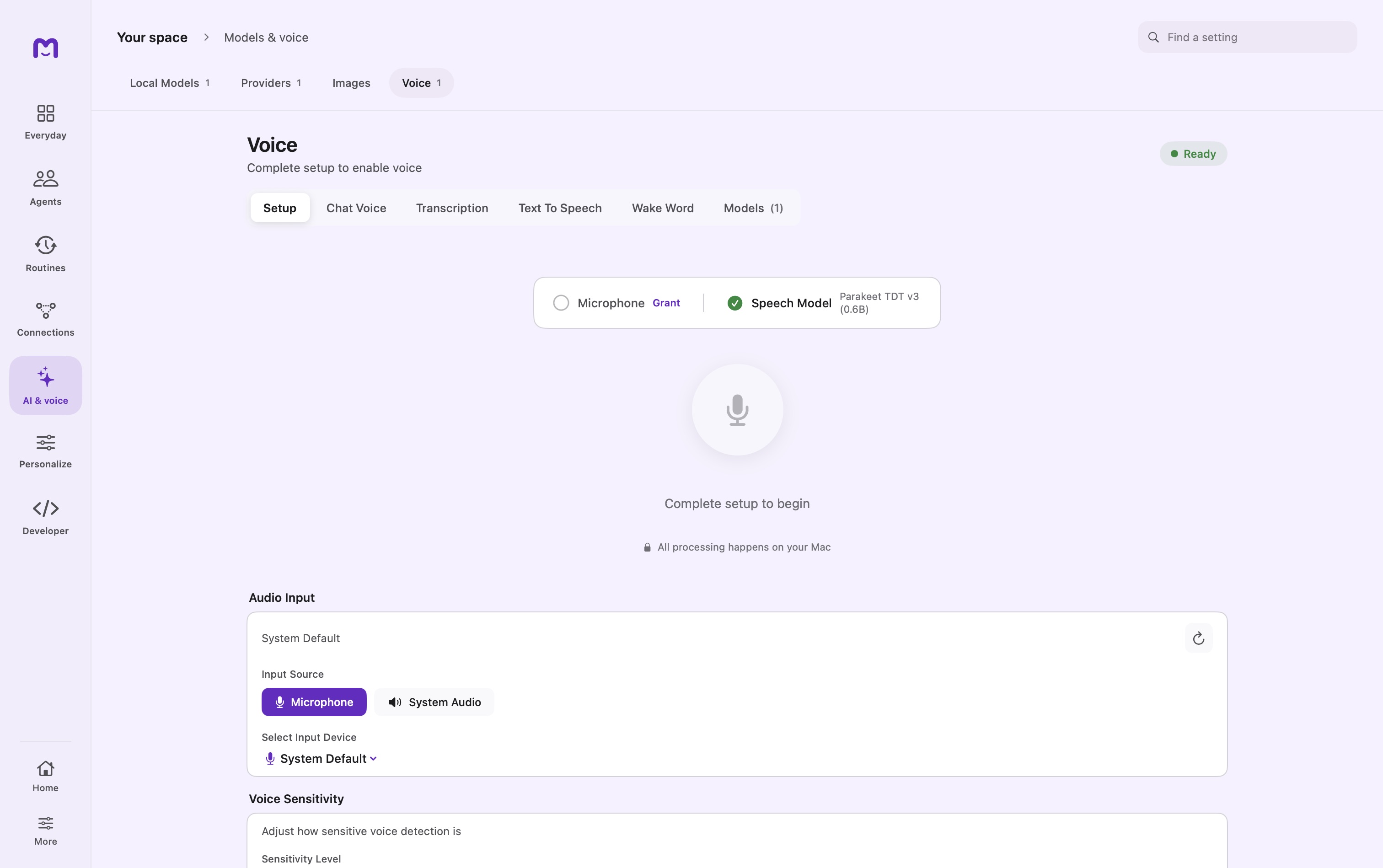
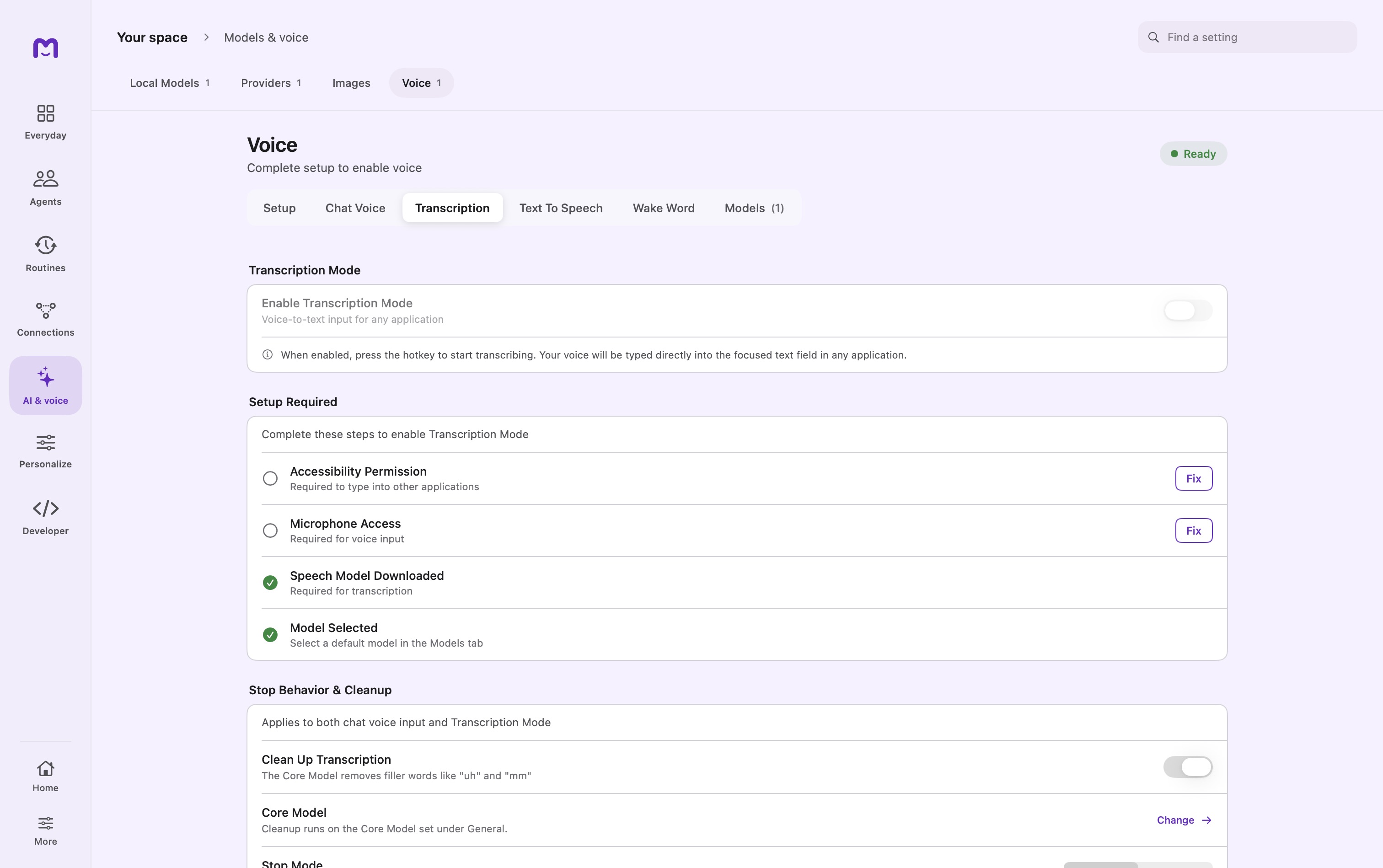
Voice in Mellow has three separate destinations: a message in your conversation, text in another app, and a wake phrase that opens an agent. Start by choosing the destination. The same microphone and speech model can serve all three, but their controls and permissions differ.
Speech recognition uses a downloaded Parakeet model on your Mac. The resulting text follows the destination you choose: a chat message may go to a remote language model; transcription cleanup can use your configured Core Model. Local speech recognition alone does not make that entire workflow offline.
Get started
Open Settings → Voice → Setup. Select the input you intend to use, grant microphone access, and download a speech model. Speak a short sentence with the Setup test, then stop recording. Read the recognized words before changing any timing or sensitivity controls.
A successful Setup test establishes that Mellow can capture audio and recognize speech. Test chat input and dictation separately; they also depend on where the recognized text is delivered.
| Destination | Start here | Successful result |
|---|---|---|
| Message to your agent | Chat Voice, then the microphone in the composer | Recognized text enters the conversation's input flow |
| Text in another app | Transcription, configure its shortcut and focus a text field | Words arrive in the field you selected |
| Hands-free agent activation | Wake Word, enable an agent name or phrase | Listening recognizes the phrase and opens the intended agent |
| Spoken replies | Text To Speech | Reply audio plays through the selected output; see Spoken replies |
Picking a model
Mellow's speech configuration supports Parakeet v3 for multilingual recognition and v2 for English. v3 is the default; the model selector describes its supported languages. Keep the selected model installed before relying on voice away from a network. Download size and preparation time depend on the asset version and your Mac.
The Models tab manages speech assets independently of chat models. A working chat provider does not supply the speech-recognition model, and a downloaded speech model does not configure a chat provider.
Voice input in chat
Enable voice input in Chat Voice, open a conversation, and use its microphone control. Speak one request first. Review how stop and send behave before using voice for messages that trigger tools or remote work.
Sending automatically
Automatic mode detects a pause and presents a confirmation interval before sending. Resuming speech interrupts that interval. Manual mode waits for your explicit stop action. Setting pause detection to zero disables silence-triggered sending.
Settings
These are the current configuration defaults; a saved profile can have different values.
| Control | Default | Effect |
|---|---|---|
| Speech model | Parakeet v3 | Chooses the recognition engine |
| Input source | Microphone | Can be changed to System Audio |
| Input device | System default | A selected device overrides the default microphone |
| Voice input | Enabled | Exposes chat voice input |
| Sensitivity | Medium | Controls voice-activity detection |
| Stop mode | Automatic | Sends after the configured pause and confirmation interval |
| Pause detection | 1.5 seconds | Silence threshold for automatic sending; zero disables it |
| Confirmation delay | 2 seconds | Time to resume speaking before the message sends |
| Silence timeout | 30 seconds | Closes idle listening; zero disables this timeout |
| Clean up transcription | Enabled | Uses the Core Model to tidy recognized text |
Stop behavior and cleanup are shared by chat voice and Transcription Mode. If a change improves dictation but makes chat send too early, review both uses before keeping it.
Sensitivity levels
Low sensitivity requires louder speech and responds to shorter silences. High sensitivity accepts quieter speech and waits longer for a pause. Start at Medium. Moving directly to High in a noisy room can make background speech count as input.
Transcribing what's playing on your Mac
Select System Audio when the source is a recording, meeting or other audio playing on the Mac. This capture path requires the relevant macOS screen/system-audio permission. Selecting the microphone instead may record sound from speakers poorly or include room noise.
Make a short capture and inspect the transcript before recording a long session. Check which source is selected again after changing headphones, Bluetooth devices or external interfaces.
Transcription Mode
Transcription Mode is off by default and has no default shortcut. Enable it and assign a shortcut under Voice → Transcription. Grant Accessibility access for inserting text into other apps, then return to the destination app and focus an editable field.
- Place the cursor where the text belongs.
- Invoke your configured transcription shortcut.
- Speak a sentence and stop using the selected stop behavior.
- Inspect the inserted text before submitting it.
Use Test Transcription inside settings to check recognition and in-app text delivery. Its field displays the current transcript during recognition and the delivered result afterward. This test uses an internal callback and does not require Accessibility or verify insertion into another app. Stop the test, focus a real external text field, and use your configured shortcut to check that separate path.
If Setup recognizes speech but this field remains empty, recognition and delivery are behaving differently. Check the error beside the test, the speech model and microphone access for the installed copy of Mellow. If the in-app test works but another app receives no text, check Accessibility permission and destination focus. Repeatedly downloading the model is unlikely to fix a text-delivery problem.
Wake Word
Enable Wake Word and choose the agent names or custom phrase that should activate a conversation. This is an ongoing listening mode. Confirm the intended agent opens, then disable it when you no longer want background activation.
A wake phrase chooses an interaction; it does not grant an agent additional tool, account or device permissions. Background listening can increase power usage compared with opening the microphone only for a message.
Privacy
Audio recognition runs locally with the downloaded speech model. Review the Core Model before enabling cleanup for sensitive dictation, because cleanup is a separate text-processing step. Review the conversation's provider before sending its transcript. In another app, inserted text is handled by that app's own behavior and account.
Troubleshooting
| What you see | What to check next |
|---|---|
| No recognized words in Setup | Microphone permission, selected input, mute state and speech-model readiness |
| Setup works but dictation does not | Transcription enabled, shortcut assigned, Accessibility access and destination focus |
| Test Transcription shows an error | Read that error before retrying; distinguish recording admission from delivery |
| A message sends before you finish | Increase pause timing or choose Manual |
| Speech never stops automatically | Check Manual mode, zero pause duration or persistent background audio |
| Recognition is inaccurate | Model/language match, input quality and sensitivity |
| System audio produces silence | Source selection and macOS capture permission |
| Wake Word opens unexpectedly | Use a less common phrase or disable background activation |
| Cleanup changes wording too much | Disable Clean Up Transcription and compare the raw result |
For an isolated check, use a short sentence without tools or attachments. Only then repeat the test in the conversation or external app where you need it.
Continue exploring · Models, voice and mediaSpoken replies →Set up on-device synthesis or a compatible speech server and test playback.